> ## Documentation Index
> Fetch the complete documentation index at: https://docs.same.new/llms.txt
> Use this file to discover all available pages before exploring further.
# Manual edit
> Same.new's AI code editor gives you full control. Create files and folders, access a terminal shell, and edit UI, backend, and logic with precision.
While Same builds based on your prompts, you can also directly interact with the project using the integrated workbench.
## Code Editor
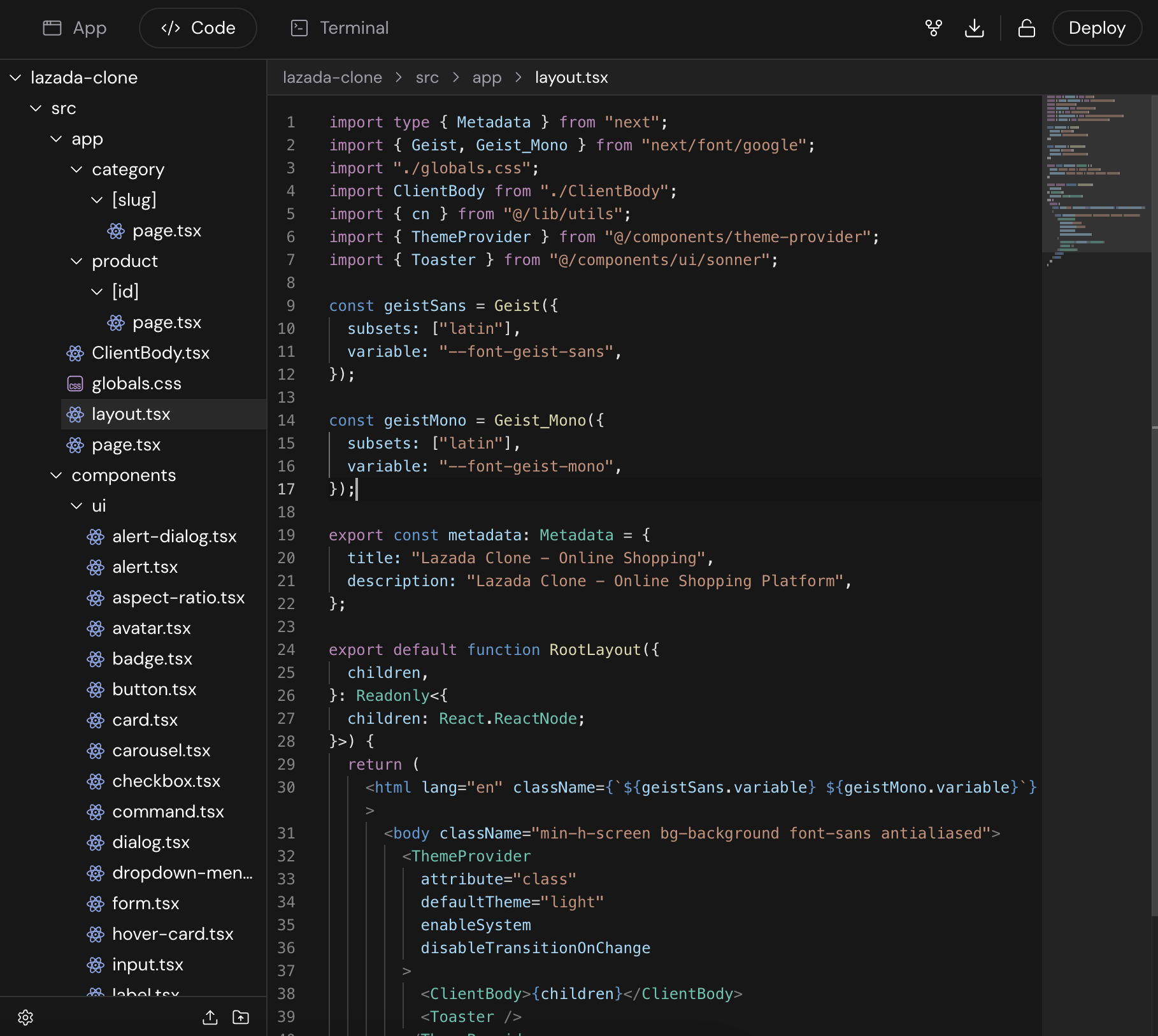
Modify project files directly in the editor.
 **Key Features:**
* **File Tree:** Browse directories on the left. Right-click (or long-press on mobile) for options.
* **Saving:** Changes save automatically after inactivity, or manually with `Cmd/Ctrl + S`. An unsaved file shows a `Save` button in the header.
* **Read-Only Mode:** If viewing a project you don't own, you must fork it to enable editing.
### Creating Files and Folders
(Requires project ownership)
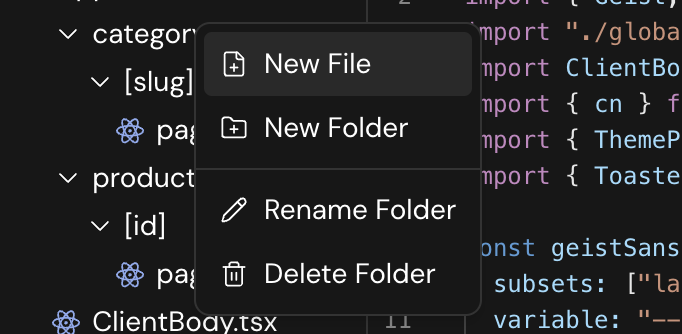
1. **Right-click** (or long-press) in the file tree on a folder or empty space (for root).
2. Select **"New File"** or **"New Folder"**.
3. Enter a name and confirm.
**Key Features:**
* **File Tree:** Browse directories on the left. Right-click (or long-press on mobile) for options.
* **Saving:** Changes save automatically after inactivity, or manually with `Cmd/Ctrl + S`. An unsaved file shows a `Save` button in the header.
* **Read-Only Mode:** If viewing a project you don't own, you must fork it to enable editing.
### Creating Files and Folders
(Requires project ownership)
1. **Right-click** (or long-press) in the file tree on a folder or empty space (for root).
2. Select **"New File"** or **"New Folder"**.
3. Enter a name and confirm.
 ### Renaming and Deleting
(Requires project ownership)
Use the right-click context menu in the file tree to rename or delete items. Deleting a folder removes all its contents.
## Terminal
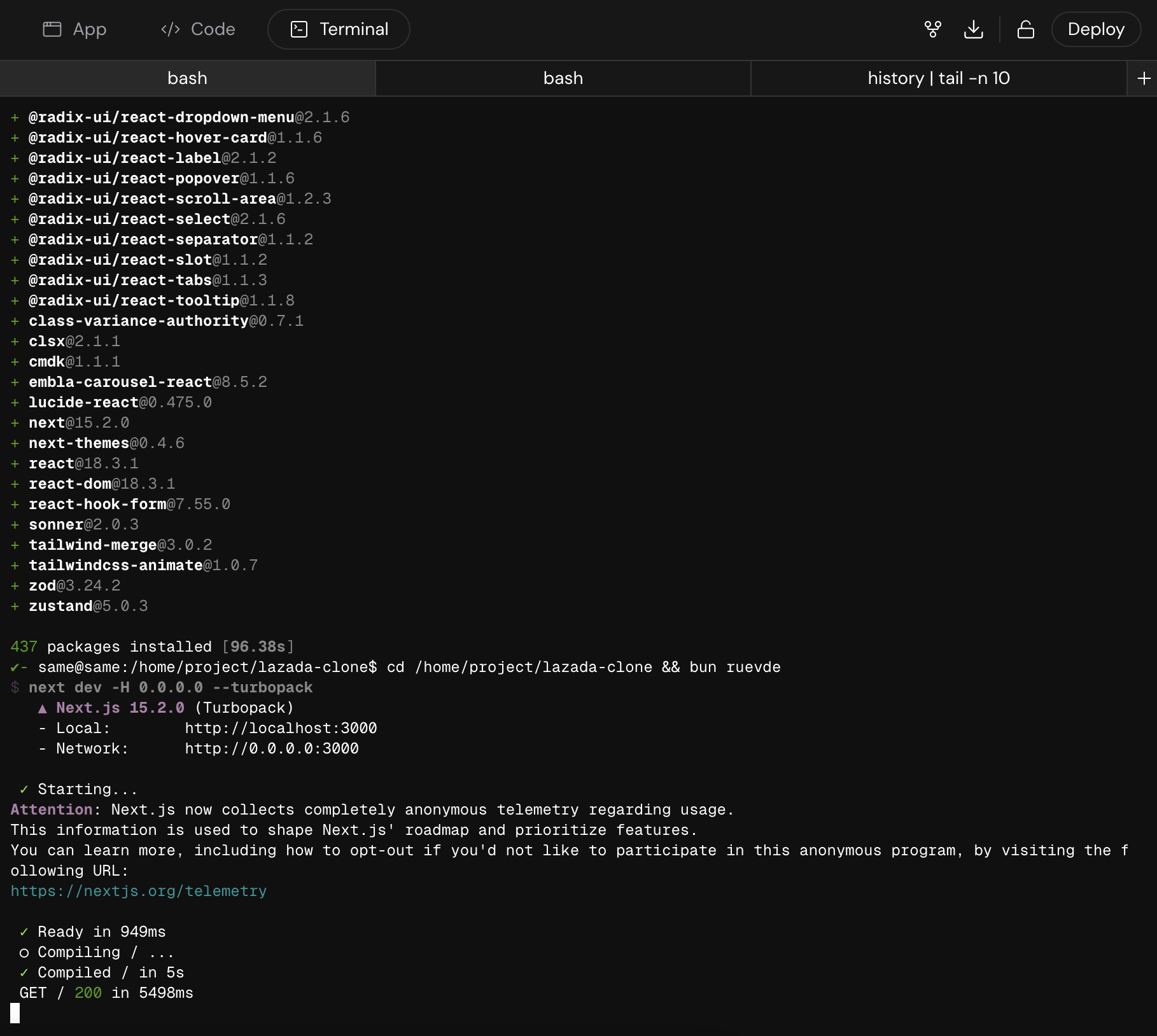
Access a shell environment within the workbench.
### Renaming and Deleting
(Requires project ownership)
Use the right-click context menu in the file tree to rename or delete items. Deleting a folder removes all its contents.
## Terminal
Access a shell environment within the workbench.
 **Key Features:**
* **Run Commands:** Execute standard commands (e.g., `bun install`, `ls`).
* **Working Directory:** Starts in `/home/project`. Use `cd` to navigate into your project folder.
* **Multiple Terminals:** Use the icon in the tab bar to open more terminals.
The terminal is containerized and operations performed within the terminal are
reset on page refresh.
## File and Folder Uploads
(Requires project ownership)
1. **Drag and Drop:** Drag files/folders onto the file tree panel. Drop on a folder to upload there, or empty space for the root.
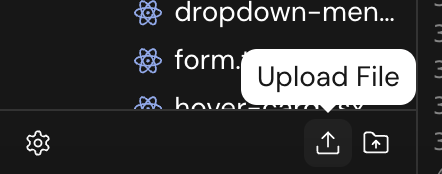
2. **Upload Buttons:** Use the Upload File and Upload Folder buttons at the bottom of the file tree. These upload to an `uploads/` folder in the root.
**Key Features:**
* **Run Commands:** Execute standard commands (e.g., `bun install`, `ls`).
* **Working Directory:** Starts in `/home/project`. Use `cd` to navigate into your project folder.
* **Multiple Terminals:** Use the icon in the tab bar to open more terminals.
The terminal is containerized and operations performed within the terminal are
reset on page refresh.
## File and Folder Uploads
(Requires project ownership)
1. **Drag and Drop:** Drag files/folders onto the file tree panel. Drop on a folder to upload there, or empty space for the root.
2. **Upload Buttons:** Use the Upload File and Upload Folder buttons at the bottom of the file tree. These upload to an `uploads/` folder in the root.