> ## Documentation Index
> Fetch the complete documentation index at: https://docs.same.new/llms.txt
> Use this file to discover all available pages before exploring further.
# Project management
> Control your AI projects in Same.new. Rename, remix, reset, or delete apps directly from your dashboard. Fast, easy, and intuitive.
## Project visibility
By default, new projects are **public**, meaning anyone can view them in Same. You can make your project private.
Only you can access your private projects.
### How to change project visibility
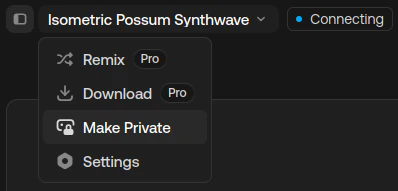
1. Enter the project workspace
2. Click the project name dropdown in the top left
3. A dropdown with project options will appear
4. Click **Make Private** or **Make Public** to toggle visibility
 ## Remix
You can remix an existing project to make it your own and start customizing from there.
### How to remix your projects
1. Enter the project and wait for it's initiation
2. Click and open the drawer
3. Click **Remix**
4. Same will make a copy and redirect you to the new project
Use remix to test new ideas while preserving your base project.
### How to remix others' projects
1. **Browse the gallery** to discover community projects
2. Pick one you like and click the **Remix**
3. Same will make a copy and redirect you to the new project
## Download
You can download your project code for local development, self-hosting, or simply backup.
To download your projects, you need to upgrade to a paid plan.
### How to download your projects
1. Enter the project and wait for it's initiation
2. Click the **Download**
3. Your code will be compressed in zip and downloaded to your device.
## Remix
You can remix an existing project to make it your own and start customizing from there.
### How to remix your projects
1. Enter the project and wait for it's initiation
2. Click and open the drawer
3. Click **Remix**
4. Same will make a copy and redirect you to the new project
Use remix to test new ideas while preserving your base project.
### How to remix others' projects
1. **Browse the gallery** to discover community projects
2. Pick one you like and click the **Remix**
3. Same will make a copy and redirect you to the new project
## Download
You can download your project code for local development, self-hosting, or simply backup.
To download your projects, you need to upgrade to a paid plan.
### How to download your projects
1. Enter the project and wait for it's initiation
2. Click the **Download**
3. Your code will be compressed in zip and downloaded to your device.
 ### How to download a specific version
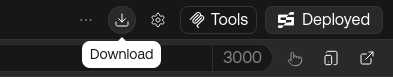
1. Enter the project and wait for it's initiation
2. Click **Show history**
3. Hover on the version you want to download and click the **Download**
4. Your code will be compressed in zip and downloaded to your device.
## Rename and delete
Your project name is autogenerated by AI; you can rename your projects at any time with no impact. You may also delete projects that are no longer needed.
### How to rename your projects
1. Go to [your profile page](https://same.new/users/me)
2. Click of the project you want to rename
3. Click **Rename** to initiate rename
4. Confirm and save
### How to delete your projects
1. Go to [your profile page](https://same.new/users/me)
2. Click of the project you want to delete
3. Click **Delete** to initiate delete
4. Confirm and delete
## Advanced management
Same uses [bun](https://bun.sh/) as the default runtime. You can customize your project setup commands your preferred.
### How to manage your project setup commands
1. Enter the project and wait for it's initiation
2. Click **Project Settings**
3. Edit the project directory, install, build, and start dev server commands
4. Save and refresh
### How to download a specific version
1. Enter the project and wait for it's initiation
2. Click **Show history**
3. Hover on the version you want to download and click the **Download**
4. Your code will be compressed in zip and downloaded to your device.
## Rename and delete
Your project name is autogenerated by AI; you can rename your projects at any time with no impact. You may also delete projects that are no longer needed.
### How to rename your projects
1. Go to [your profile page](https://same.new/users/me)
2. Click of the project you want to rename
3. Click **Rename** to initiate rename
4. Confirm and save
### How to delete your projects
1. Go to [your profile page](https://same.new/users/me)
2. Click of the project you want to delete
3. Click **Delete** to initiate delete
4. Confirm and delete
## Advanced management
Same uses [bun](https://bun.sh/) as the default runtime. You can customize your project setup commands your preferred.
### How to manage your project setup commands
1. Enter the project and wait for it's initiation
2. Click **Project Settings**
3. Edit the project directory, install, build, and start dev server commands
4. Save and refresh