> ## Documentation Index
> Fetch the complete documentation index at: https://docs.same.new/llms.txt
> Use this file to discover all available pages before exploring further.
# Clerk for authentication
> Connect Clerk Auth to Same.new to add secure login, signup, and sessions to your project. Set up in minutes.
## What is Clerk?
[Clerk](https://clerk.com/) is a complete **user management** solution for modern web applications. It provides **authentication**, **user profiles**, **session management**, and **access control**. Clerk can be easily integrated to simplify building user-centric apps.
When you connect Same with Clerk, you can use natural language to:
* Set up authentication flows and UI for sign-up and login
* Manage user sessions, roles, and permissions
* Retrieve and update user profile data directly within your project
## Get started with Clerk
We recommend connecting to Clerk through MCP
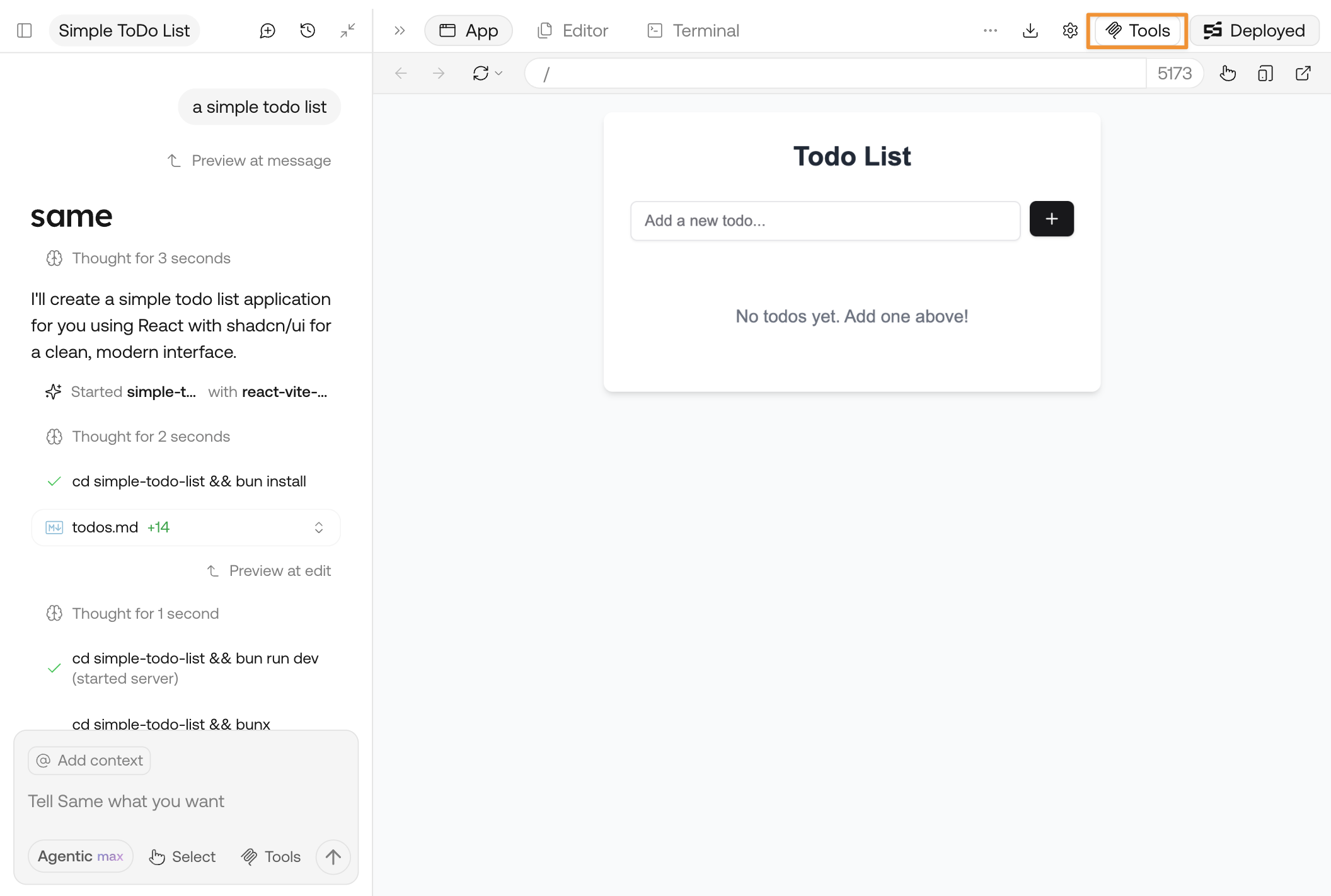
Click **Tools** and open the panel.
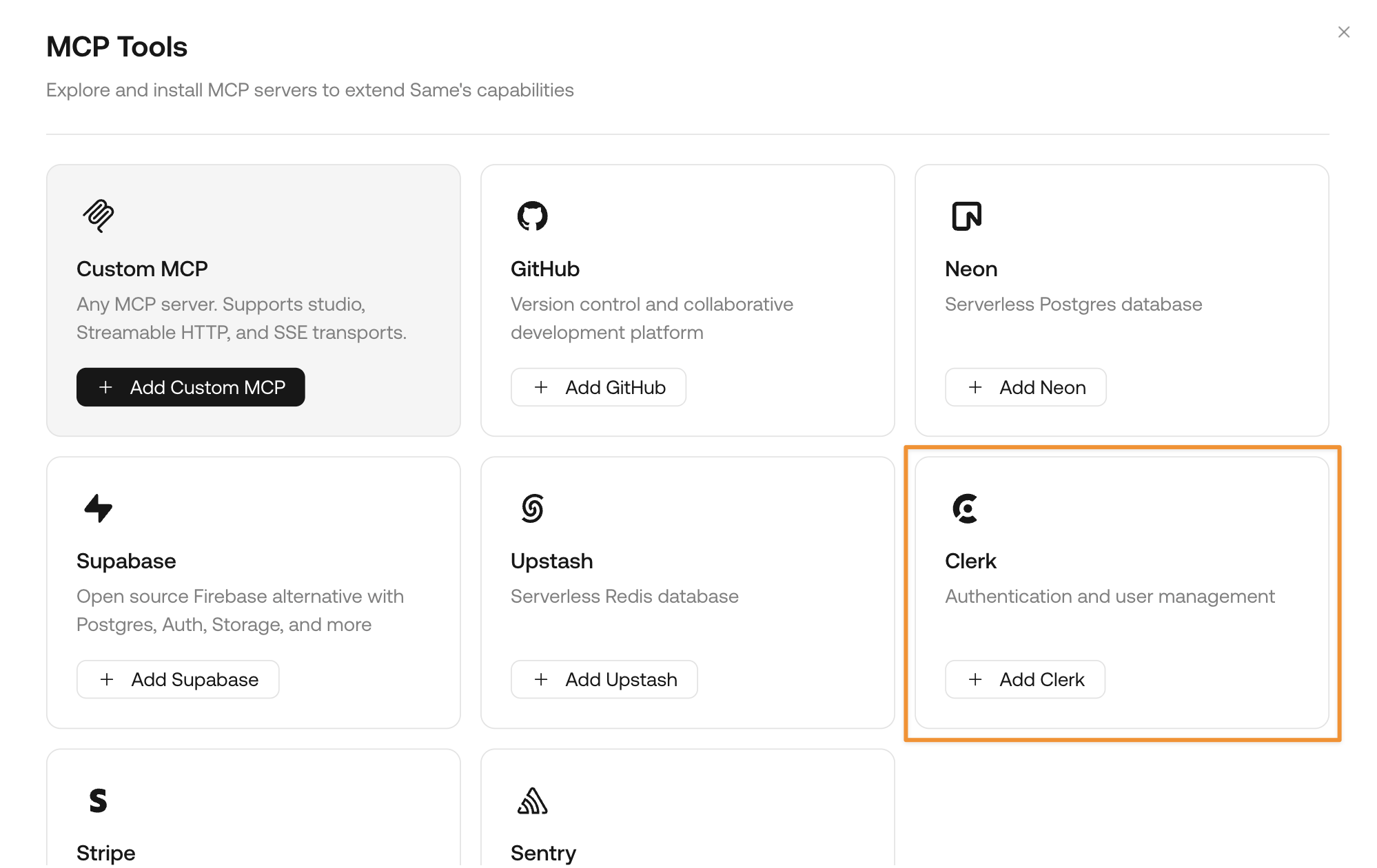
 Find the card for Clerk and click **Add Clerk**
 Follow the instructions to create a Clerk application for your project. You may need to sign up for an account if you don't have one yet.
Clerk provides free plans for new users. [Check Clerk's pricing](https://clerk.com/pricing).
Once the connection is successful, directly ask Same to:
```md theme={null}
Add authentication to my project with Clerk
```
Same will automatically set up the authentication foundation for your project.
To fully integrate with Clerk, you need to copy your API keys to your `.env` file. You can directly ask Same for detailed instructions:
```
How to set up my Clerk API keys in my project?
```
Clerk has different keys for test environment (where you are building) and live environment (where your app is published). You can use the test environment keys first, then switch to live environment keys when you deploy. [Learn how to deploy your Clerk app to live environment](https://clerk.com/docs/deployments/overview#api-keys-and-environment-variables)
## Sample prompts with Clerk
Here are some sample prompts you can try with Clerk to discover its full functionality:
```md theme={null}
Add authentication to my project with Clerk
```
```md theme={null}
Design and create a role and permission system for my project with auth
```
Follow the instructions to create a Clerk application for your project. You may need to sign up for an account if you don't have one yet.
Clerk provides free plans for new users. [Check Clerk's pricing](https://clerk.com/pricing).
Once the connection is successful, directly ask Same to:
```md theme={null}
Add authentication to my project with Clerk
```
Same will automatically set up the authentication foundation for your project.
To fully integrate with Clerk, you need to copy your API keys to your `.env` file. You can directly ask Same for detailed instructions:
```
How to set up my Clerk API keys in my project?
```
Clerk has different keys for test environment (where you are building) and live environment (where your app is published). You can use the test environment keys first, then switch to live environment keys when you deploy. [Learn how to deploy your Clerk app to live environment](https://clerk.com/docs/deployments/overview#api-keys-and-environment-variables)
## Sample prompts with Clerk
Here are some sample prompts you can try with Clerk to discover its full functionality:
```md theme={null}
Add authentication to my project with Clerk
```
```md theme={null}
Design and create a role and permission system for my project with auth
```