> ## Documentation Index
> Fetch the complete documentation index at: https://docs.same.new/llms.txt
> Use this file to discover all available pages before exploring further.
# Neon for database
> Learn how to integrate Neon Database with Same.new. Add a Postgres-powered backend to your AI apps and deploy from a prompt, no setup required.
## What is Neon?
[Neon](https://neon.tech) is a fully managed, serverless **PostgreSQL database** designed for modern development. It separates storage and compute for autoscaling, enables instant branching for safe experimentation, and supports rich collaboration workflows.
A database stores, organizes, and retrieves data for your project. With a database, you can persist user data, content, and configurations — even after the app is closed or restarted.
When you connect Same with Neon, you can use natural language to:
* Have Same design and build a schema that fits your project
* Spin up and manage database branches for safe testing
* Explore and analyze your data without leaving your Same workspace
## Get started with Neon
We recommend connecting to Neon through MCP
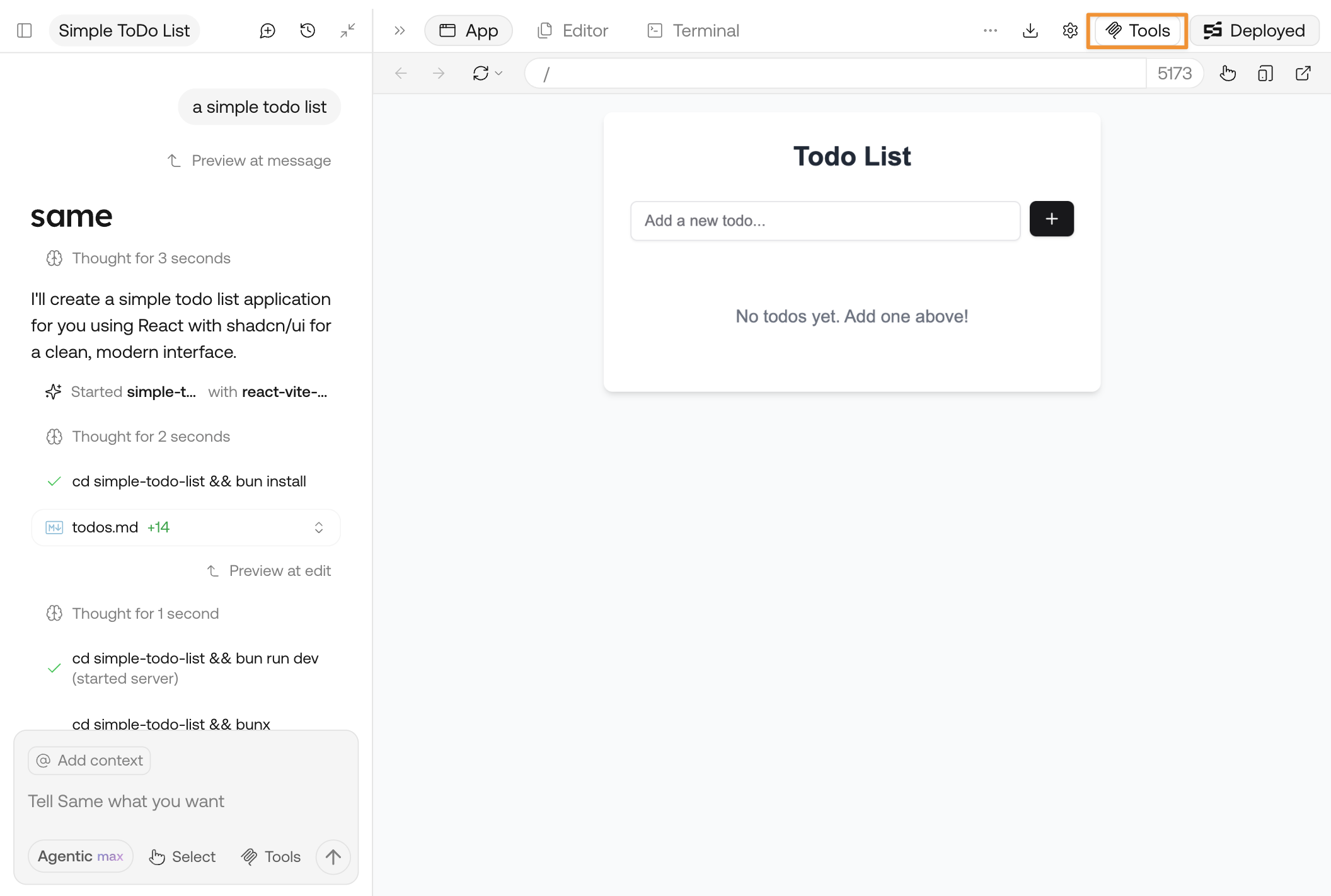
Click **Tools** and open the panel
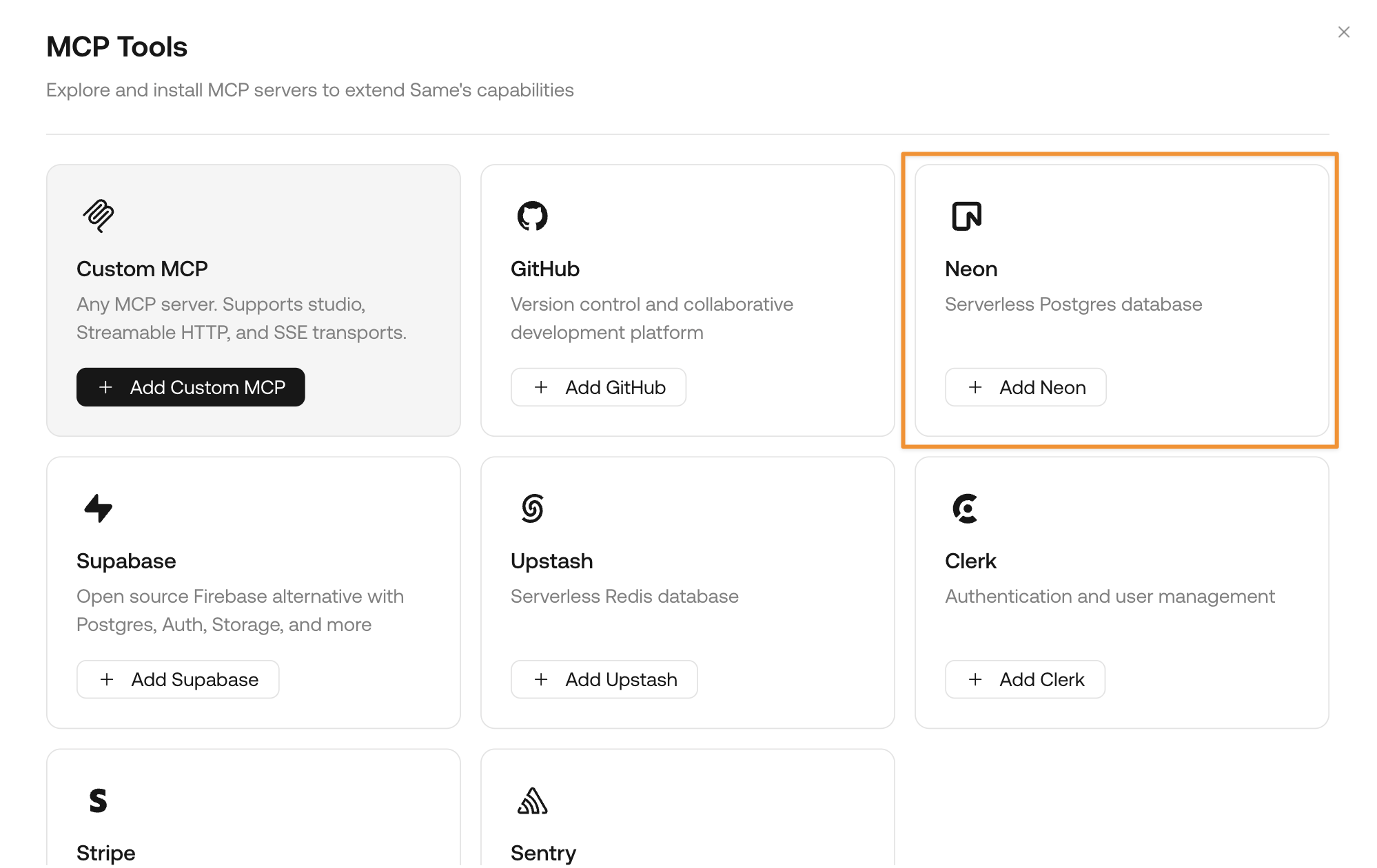
 Find the card for Neon and click **Add Neon**
 Follow the page instructions to approve the connection. You may need to sign up for an account if you don't have one yet.
Neon provides free plans for new users. [Check Neon's pricing](https://neon.com/pricing).
Once the connection is successful, directly ask Same to:
```md theme={null}
Design the database schema for my project and connect it to a new Neon project
```
Same will automatically manage everything for you, from Neon project creation and database schema design to final connection and migration.
## Sample prompts with Neon
Here are some sample prompts you can try with Neon to discover its full functionality:
```md theme={null}
Design the database schema for my project and connect it to a new Neon project
```
```md theme={null}
Create a new database branch
```
```md theme={null}
What's the stock of each active product I have?
```
Follow the page instructions to approve the connection. You may need to sign up for an account if you don't have one yet.
Neon provides free plans for new users. [Check Neon's pricing](https://neon.com/pricing).
Once the connection is successful, directly ask Same to:
```md theme={null}
Design the database schema for my project and connect it to a new Neon project
```
Same will automatically manage everything for you, from Neon project creation and database schema design to final connection and migration.
## Sample prompts with Neon
Here are some sample prompts you can try with Neon to discover its full functionality:
```md theme={null}
Design the database schema for my project and connect it to a new Neon project
```
```md theme={null}
Create a new database branch
```
```md theme={null}
What's the stock of each active product I have?
```